How to Transfer Designs from PE-Design to Your Brother Embroidery Machine
Once your design is ready in PE-Design, you need to get the .PES file onto your embroidery machine. There are three common methods depending on your machine.
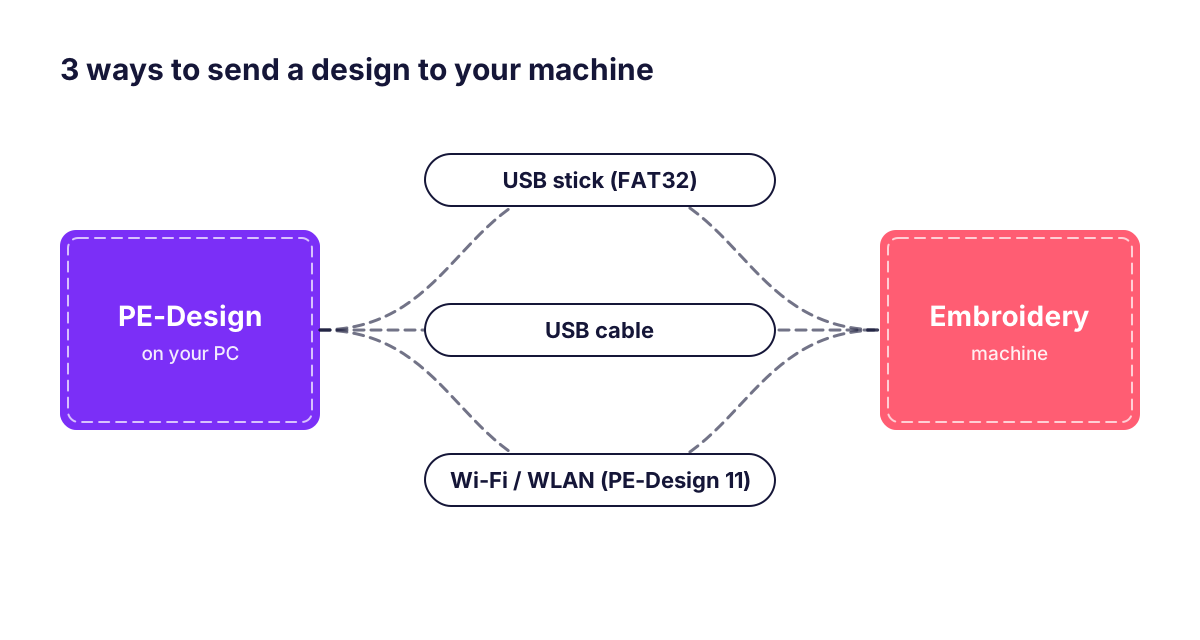
1. USB stick (works with most machines)
- In PE-Design choose File › Save As and save the design as .PES.
- Copy the file to a USB stick formatted in FAT32 (small sticks of 4–32 GB are the most reliable).
- Insert the stick in the machine’s USB port and open the USB memory icon on the screen.
2. Direct USB cable
Many Brother machines appear as a removable drive when connected to the PC by USB cable. Copy the PES file into the machine’s drive just as you would to a USB stick.
3. Wireless transfer (WLAN)
With PE-Design 11 and a WLAN-enabled Brother machine on the same Wi-Fi network, you can send designs directly from the software. Connect the machine to your network first, then use the send/transfer option in PE-Design and select the machine.
Troubleshooting
- Design not visible: make sure the file is .PES and not inside too many sub-folders.
- “Design too large”: the design is bigger than your machine’s largest hoop. Resize it in PE-Design or split it with multi-hoop.
- USB stick not recognised: reformat it to FAT32 and avoid large or encrypted drives.
- Colours look different: select the thread chart that matches your threads (e.g. Brother Embroidery thread) before saving.
Need help? Message us on WhatsApp with your machine model and we will guide you.
FAQ
Which USB stick format does a Brother embroidery machine need?
FAT32 is the safest choice. Many machines do not read exFAT or NTFS drives.
Can I send designs wirelessly with PE-Design 10?
Wireless sending to WLAN machines is a PE-Design 11 feature. With PE-Design 10 use a USB stick or USB cable.