Photo Stitch in PE-Design: How to Turn Photos into Embroidery
Photo Stitch is one of the most impressive features of PE-Design. It analyses a photograph and converts it into an embroidery design that reproduces its tones with thread. It is included in PE-Design 11, PE-Design 10 and the beginner edition PE-Design Plus2.
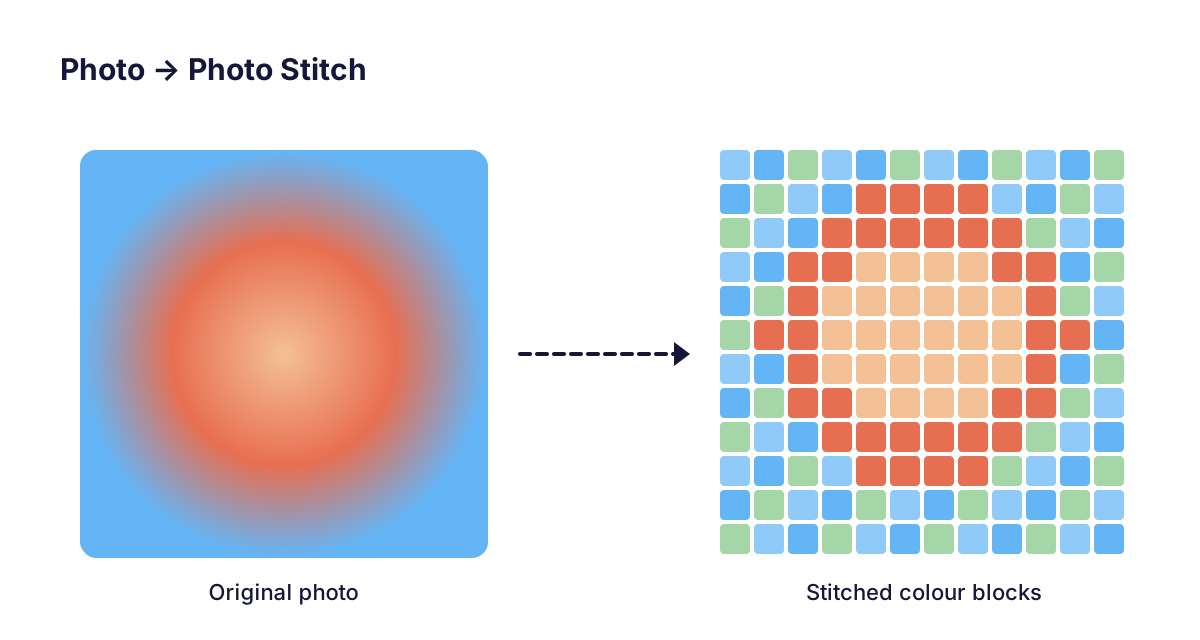
Step 1 — choose the right photo
- Sharp focus and good light; avoid dark or blurry pictures.
- Simple background — remove or crop busy backgrounds first.
- Faces and pets work best when the subject fills most of the frame.
Step 2 — pick a style
- Colour: realistic result using several thread colours.
- Sepia / Monochrome: elegant and easier to stitch, fewer colour changes.
- Cross-stitch / Mosaic: stylised pixel look, great for gifts.
Step 3 — size and settings
Photo embroidery needs room. A portrait usually looks best at at least 13 × 18 cm (5 × 7 in). Crop with a mask (oval, rectangle, heart) and let PE-Design pick thread colours from your thread chart, then remove colours that are very similar to reduce thread changes.
Step 4 — fabric and stabilizer
Photo designs have many stitches. Use a stable fabric (cotton twill, canvas, denim) and a firm cut-away stabilizer. Avoid thin T-shirt fabric without extra backing.
Step 5 — test stitch
Always stitch a test on similar fabric. If it puckers, reduce density slightly or add stabilizer; if details are lost, increase the size.
FAQ
Which PE-Design versions have Photo Stitch?
PE-Design 11, PE-Design 10 and PE-Design Plus2 all include PhotoStitch. PE-Design 10 added Enhanced PhotoStitch with colour editing, and PE-Design 11 adds a Cross Stitch Wizard.
Why does my photo embroidery look blurry?
Usually the design is too small or the photo is low contrast. Increase the size and use a sharper, brighter photo.